Loading...
Catalog Tool: Connect Your Product Catalog to Your AI Agent
The Catalog Tool lets your AI agent answer customer questions about your products — price, color, fabric, availability — directly from a live inventory you build on your phone. You photograph products in the Catalog app, AI auto-detects all attributes, and once you connect the shop to your agent it can sell from it across WhatsApp and Instagram 24/7.
Step 1: Open the Catalog App
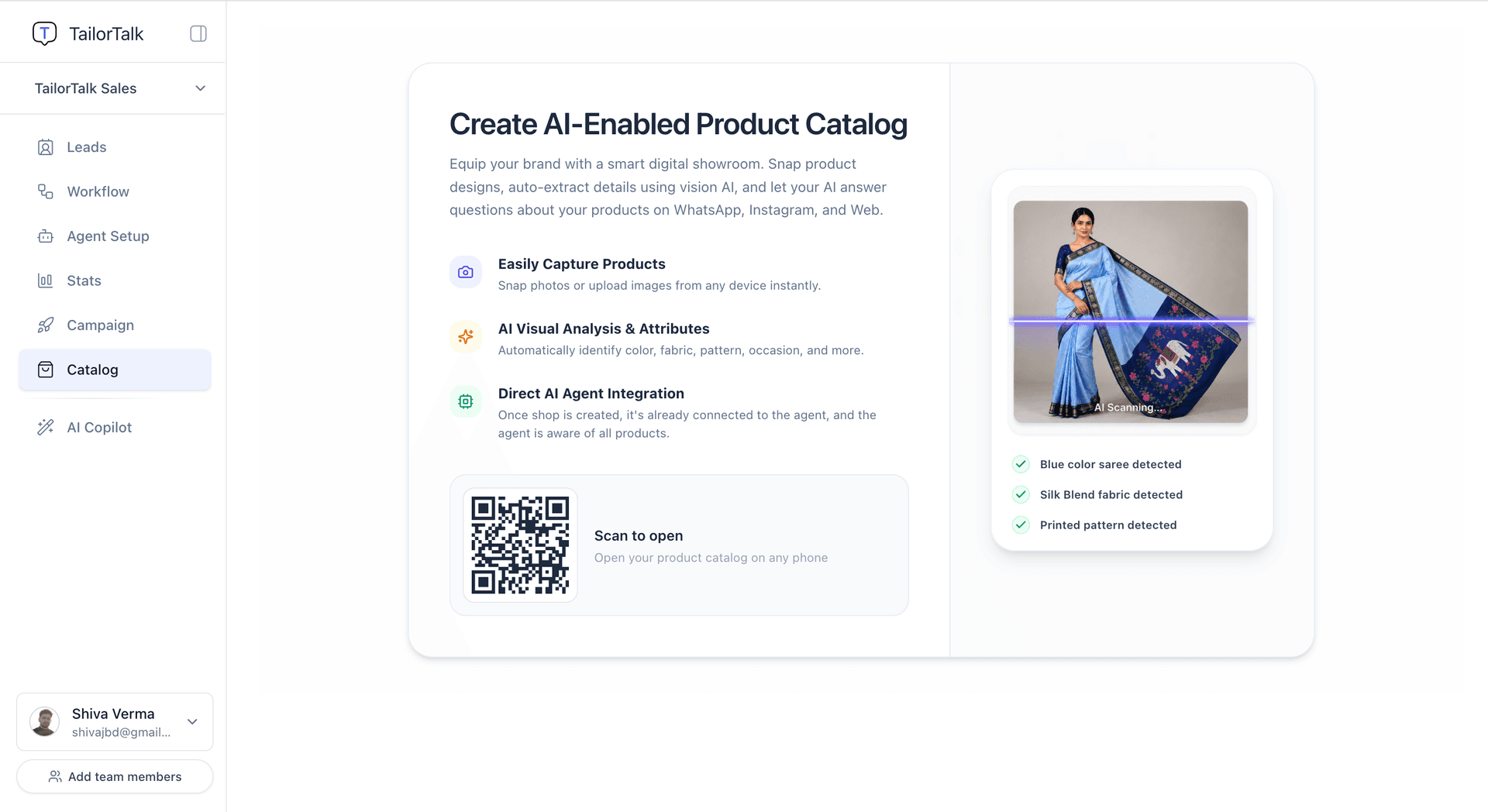
In your TailorTalk dashboard, click Catalog in the left sidebar. You will see the Catalog overview page with a QR code.
Scan the QR code with your phone to open the Catalog app in your mobile browser. No app store download is needed — it runs directly in your phone's browser and can be added to your home screen.
Step 2: Create Your Shop
When you first open the Catalog app, you will be prompted to create a shop.
- Enter a Shop Name (e.g. "Shiva's Shop").
- Select a Shop Category — choose Garments for sarees, lehengas, kurtis, and ethnic wear, or Other for general merchandise.
- Tap Create Shop.
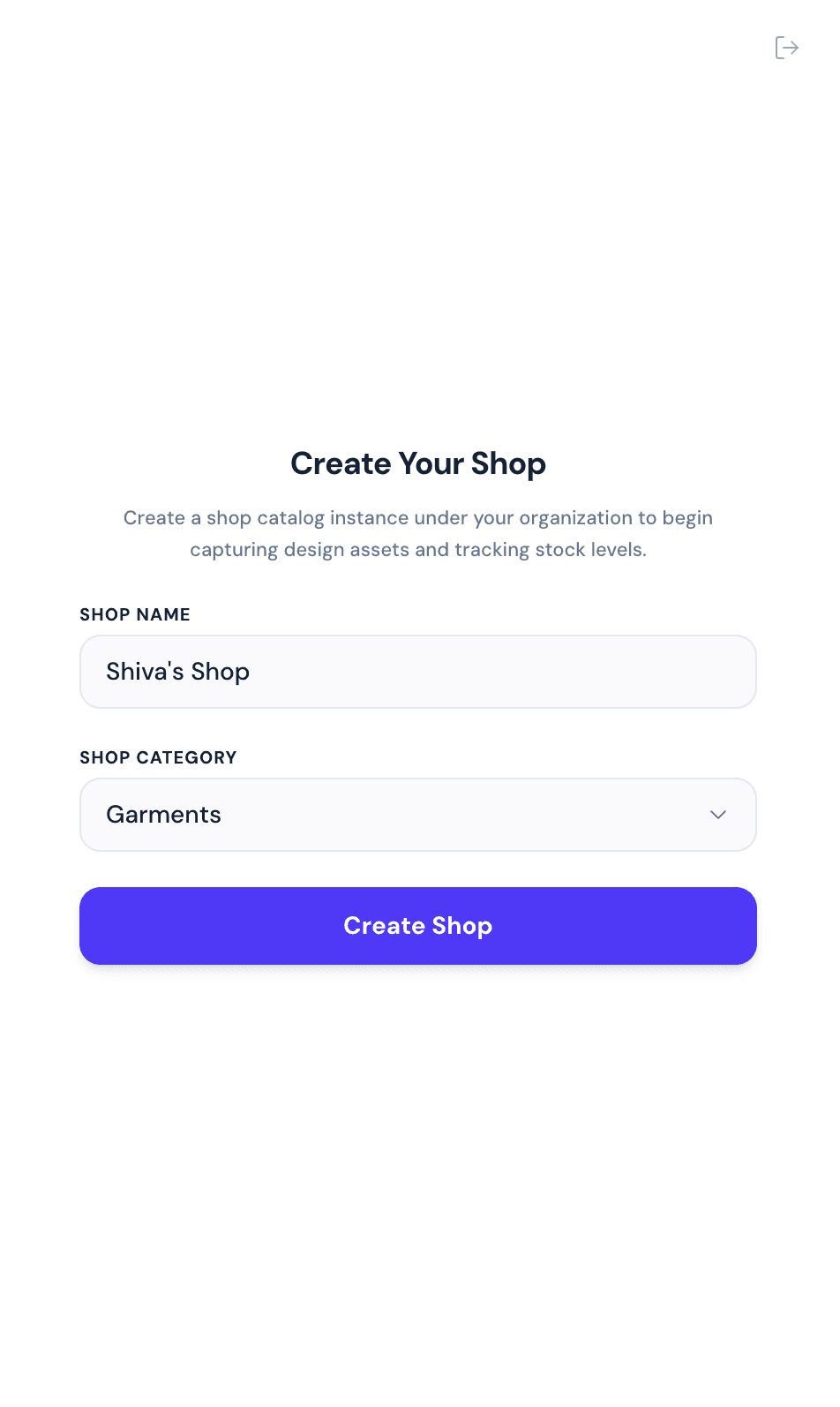
Garments vs Other: Garments shops get dedicated AI detection for fabric type (silk, chiffon, cotton), color, and ethnic wear category. Other shops use a flexible custom attributes system.
Step 3: Add Products — AI Attributes Them Automatically
Once your shop is created, tap the Add button (bottom right) and photograph your product or upload an image from your gallery.
The AI scanner will automatically:
- Upload the product image
- Detect name, color, fabric, category, description, and tags
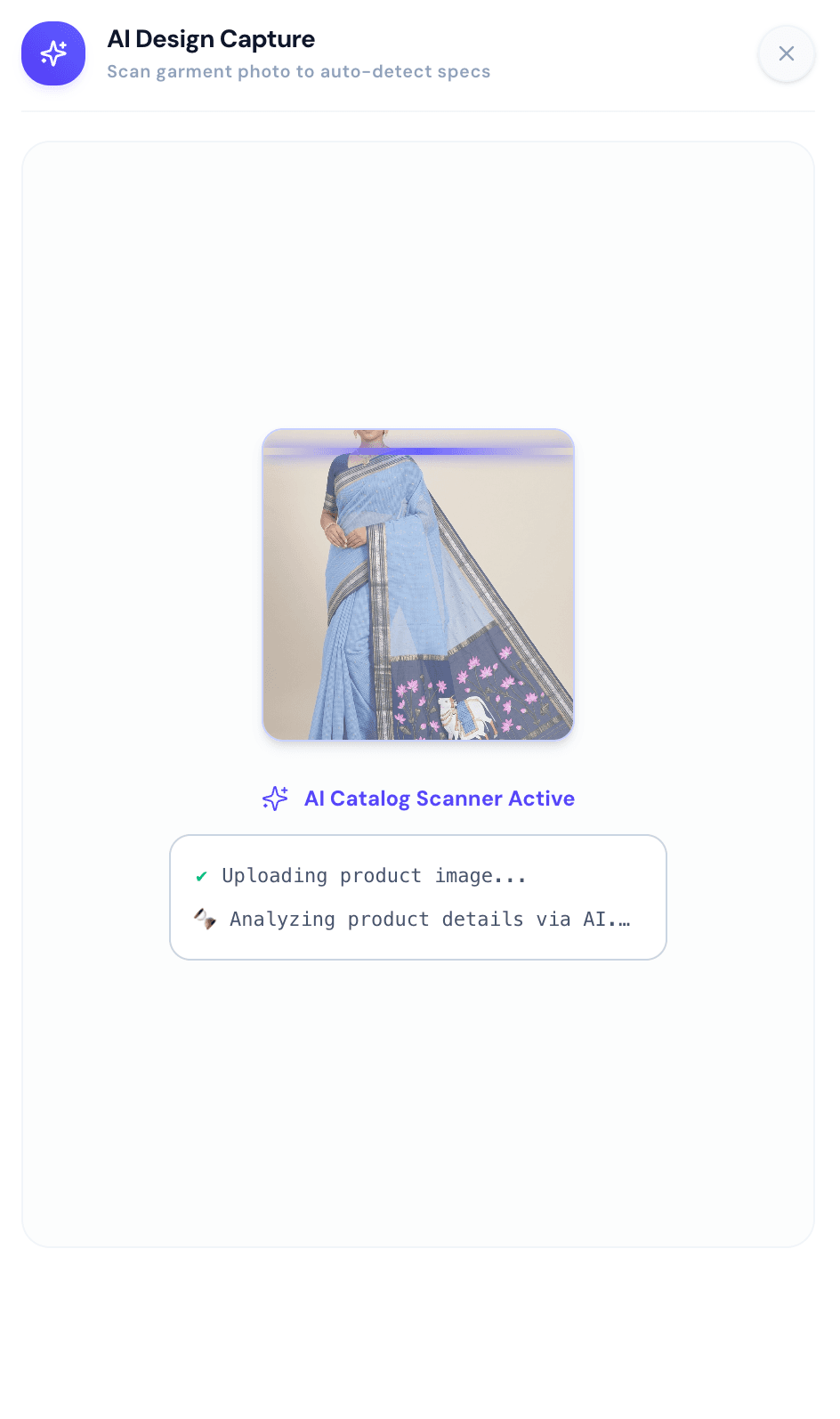
Review the AI-detected details, set the price and quantity, then save. Your product is live in inventory instantly.
Step 4: Selling One Design in Several Colours
If you sell the same design in multiple colours — the same saree in navy, red and green — you can photograph all of them in one go and let the app split them into a separate product per colour.
Turn on Colour Variants
Go to the Settings tab in the Catalog app, switch on Colour Variants, and tap Save. This only needs to be done once for your shop.
Photograph every colour
Tap Add, then upload a photo of each colour (up to 10 photos). Once you have added two or more photos, a Split by colour toggle appears. Turn it on.
The AI then reads the colour of every photo, and describes the product itself — title, description, tags — without mentioning any colour, since those details are shared by all of them.
Review the colours
You will see one card per colour, each showing:
- The detected colour, which you can correct by typing over it
- Its own product code, generated for you and editable
- Its own quantity, so navy can sell out while red stays in stock
Two photos given the same colour are merged into a single product holding both images — useful when you shoot the front and back of one colour. The header keeps a live count, for example "3 products from 5 photos", so you can always see how many products you are about to create. To split a photo back out, simply give it a different colour.
The price, MRP and discount are shared across every colour.
Tap Save and each colour is created as its own product, linked together behind the scenes.
What your agent does with it
Your agent now understands that these products are the same design in different colours. A customer can ask "do you have this in yellow?" and the agent sends the yellow one. If yellow isn't available, it says so and tells them which colours are — it will never send a different product by mistake. Colours that are out of stock are never offered.
Step 5: Manage Your Inventory
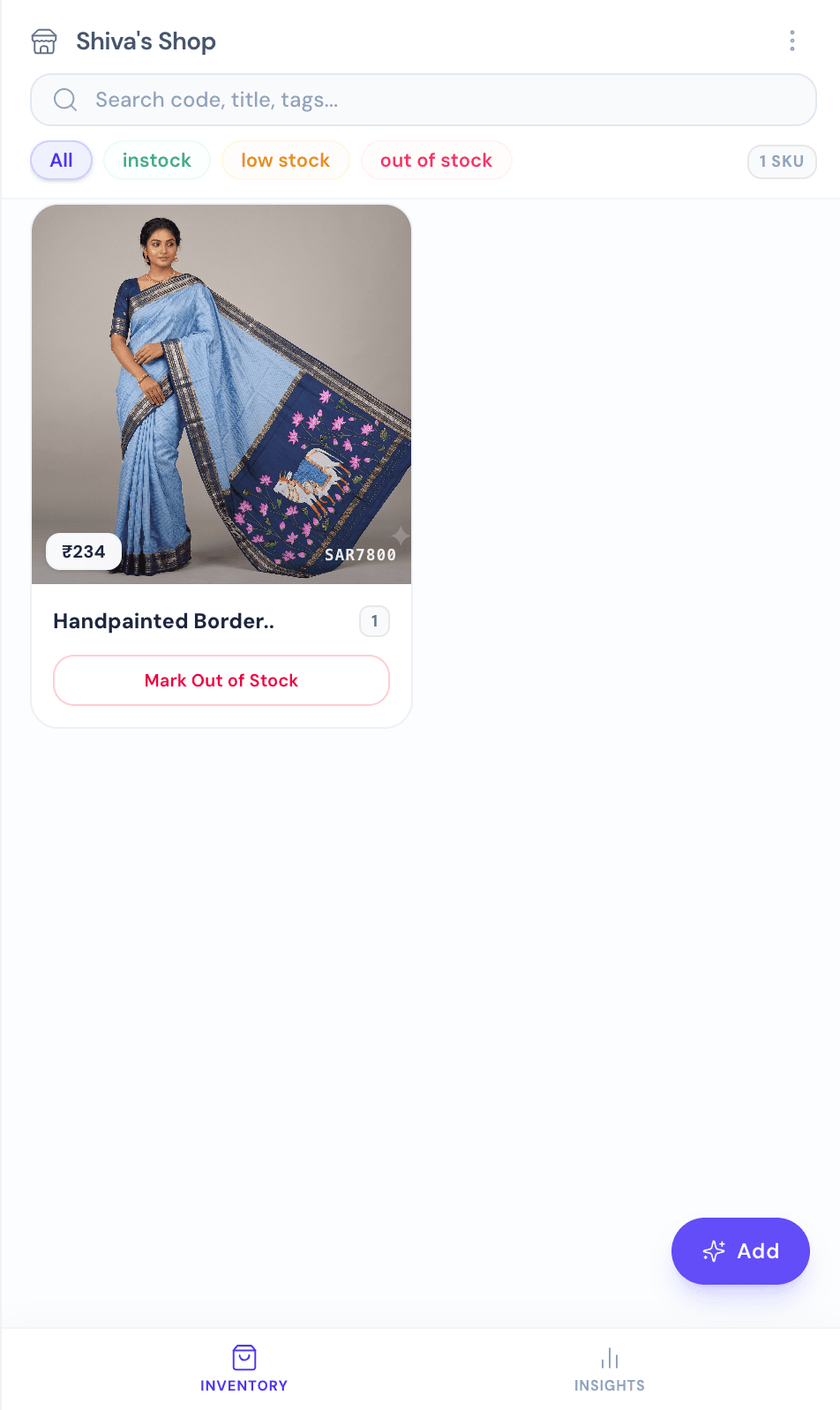
After adding products, your inventory grid shows all items with stock status, price, and product code. You can:
- Search by title, code, tags, or any attribute
- Filter by In Stock, Low Stock, or Out of Stock
- Mark items out of stock or restock with a single tap
Share products in a chat
You can also send products to a customer yourself, straight from a conversation in the Chats tab:
- Open a WhatsApp or Instagram chat and tap the shopping bag icon next to the message box.
- Browse or search your catalog and tap up to 10 products. Tap a picked product again to take it out.
- Tap Send. The products go out as one carousel in the order you tapped them, each card showing the product's photo, name, product code and price. A single product goes out as its own photos instead.
The button only appears while the customer's 24-hour messaging window is open, since WhatsApp and Instagram don't deliver media outside it. Products without a photo or product code can't be picked.
Step 6: Automatic Stock Deduction After Payment
You can let your agent keep inventory accurate on its own. With Auto Stock Deduction turned on, whenever a customer completes a payment the agent automatically reduces that product's stock — no manual updating needed. When a product's quantity reaches zero it is marked out of stock, so your agent stops offering it.
Turn it on
Go to the Settings tab in the Catalog app, switch on Auto Stock Deduction, and tap Save Settings. It is off by default, so your inventory only changes automatically once you opt in.
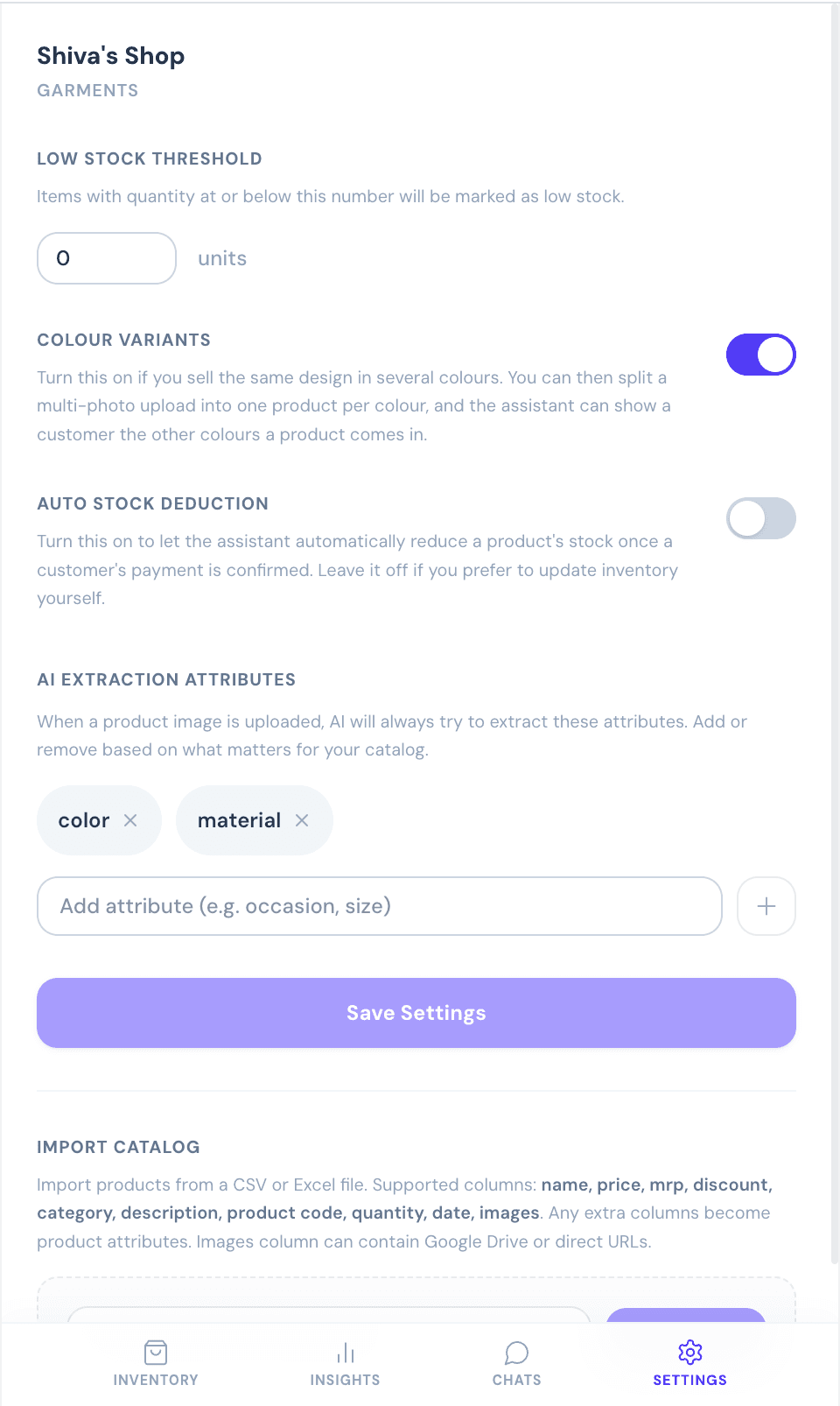
Off by default: If you would rather adjust stock yourself, leave this off and update quantities manually from the inventory grid. You can turn it on or off at any time.
Step 7: Connect the Catalog to Your Agent
Once your shop has products, go back to the TailorTalk dashboard and navigate to Agent Setup. Scroll down to Add Tool and click it.
In the Select Tool modal, scroll down and select Catalog.
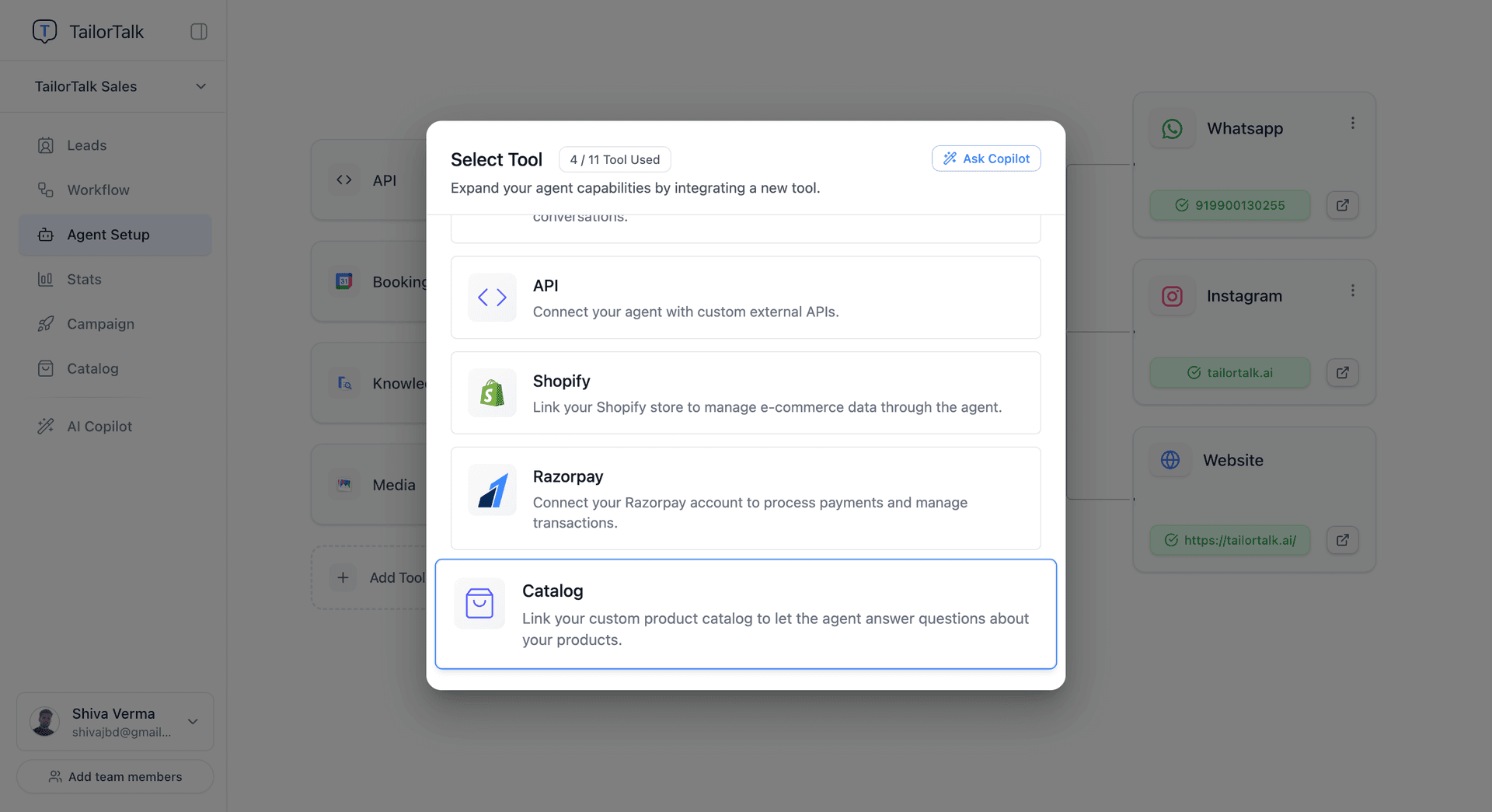
The Catalog Tool panel will open and show your shop — ready to connect to the AI Agent.
Click Connect Catalog.
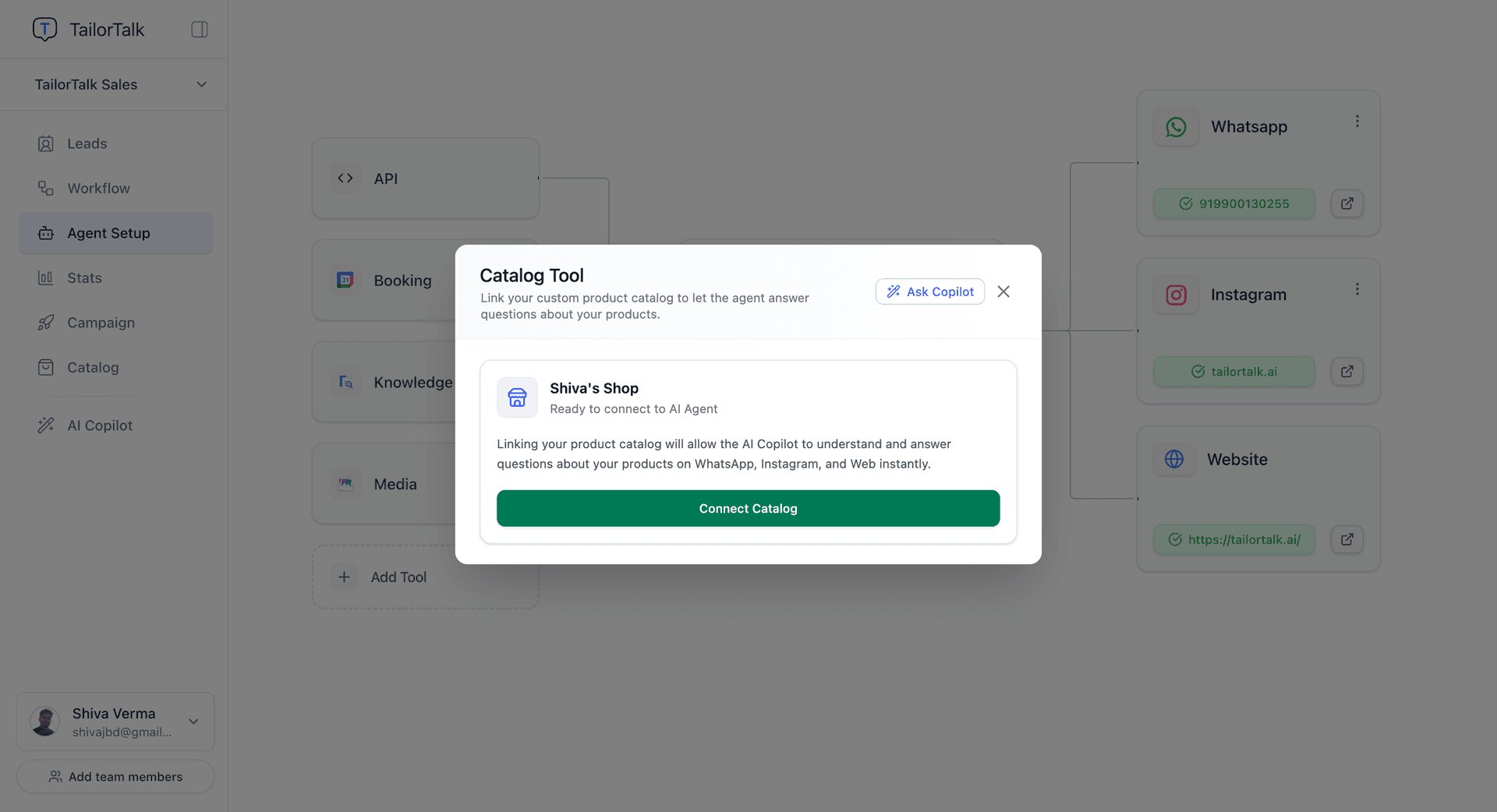
Your agent now has full access to your product catalog. It can answer questions like "do you have this in blue?", "what's the price of the silk saree?", or "what's currently in stock?" — automatically, on WhatsApp and Instagram, 24/7.
What Your Agent Can Do With the Catalog
- Answer product queries by name, color, fabric, category, or price
- Check real-time stock availability
- Show a design in its other colours when a customer asks, if Colour Variants is on
- Share product images and descriptions in conversation
- Automatically reduce stock after a customer pays, if Auto Stock Deduction is on
- Handle queries across WhatsApp, Instagram, and Website Chat simultaneously
Tips
- Add multiple shops under one account if you manage multiple brands or outlets. Each shop connects as a separate Catalog Tool.
- Keep stock updated — mark items out of stock in the app so your agent never quotes products you can't fulfill, or turn on Auto Stock Deduction to let the agent reduce stock automatically after each payment.
- Up to 10 images per product — use them for different angles; the agent shares whichever is most relevant.
- Give every colour its own quantity — when one colour sells out, your agent stops offering it while still selling the others.

