Loading...
Google Drive Tool: Find and Share Files in Conversations
The Google Drive Tool enables your TailorTalk AI agent to search, retrieve, and share files stored in a connected Google Drive account. Based on user requests, your agent can find relevant documents, images, PDFs, and other files, and send them directly to users when needed.
Additionally, this tool can be used within workflows to automate file-related tasks, such as searching for files, fetching metadata or links, and using those assets in subsequent steps to automate document sharing and content delivery.
Configuring the Google Drive Tool
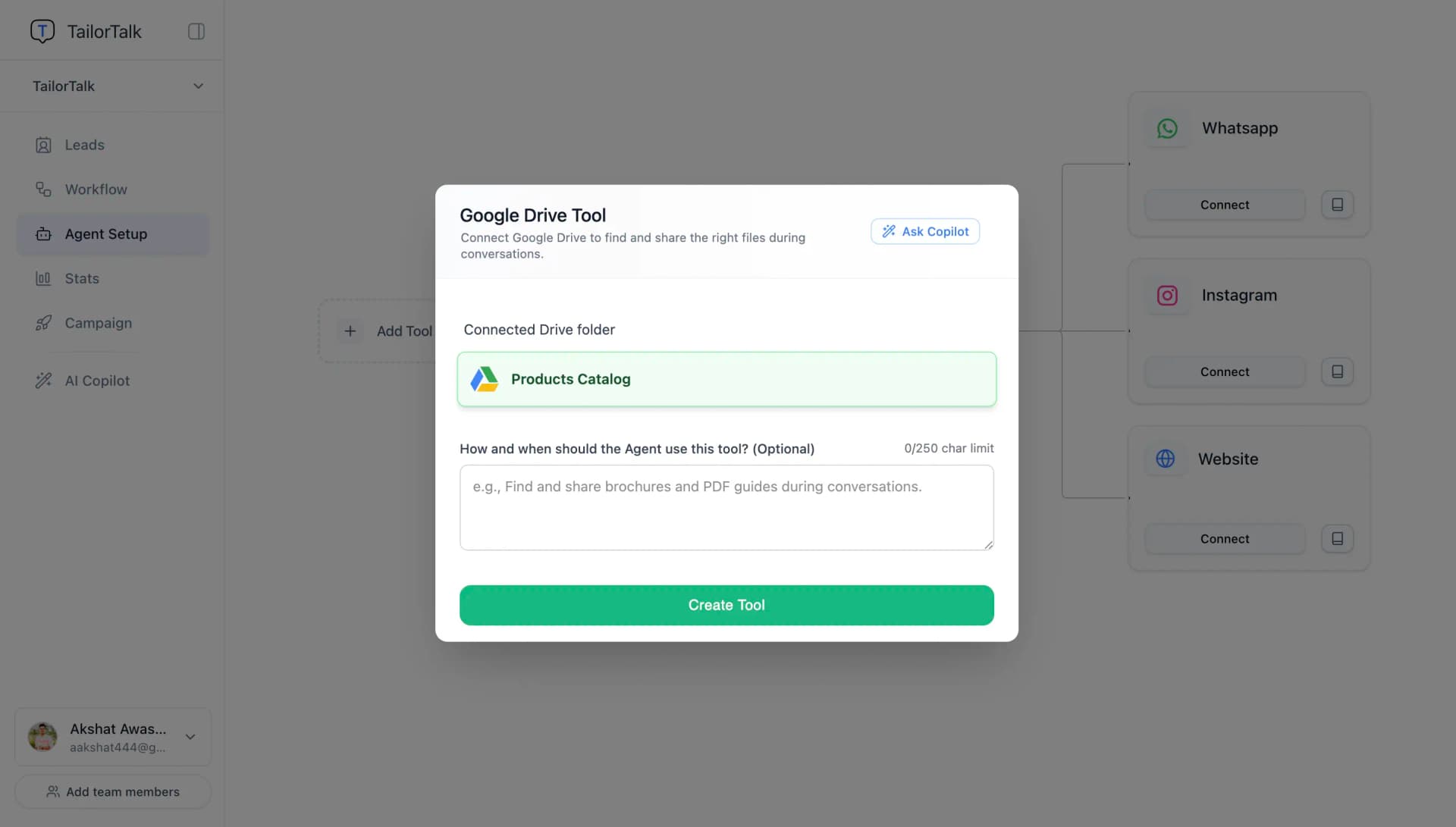
- Connect Your Google Account: Click + Connect Google Account to link your Google account with the TailorTalk Agent.
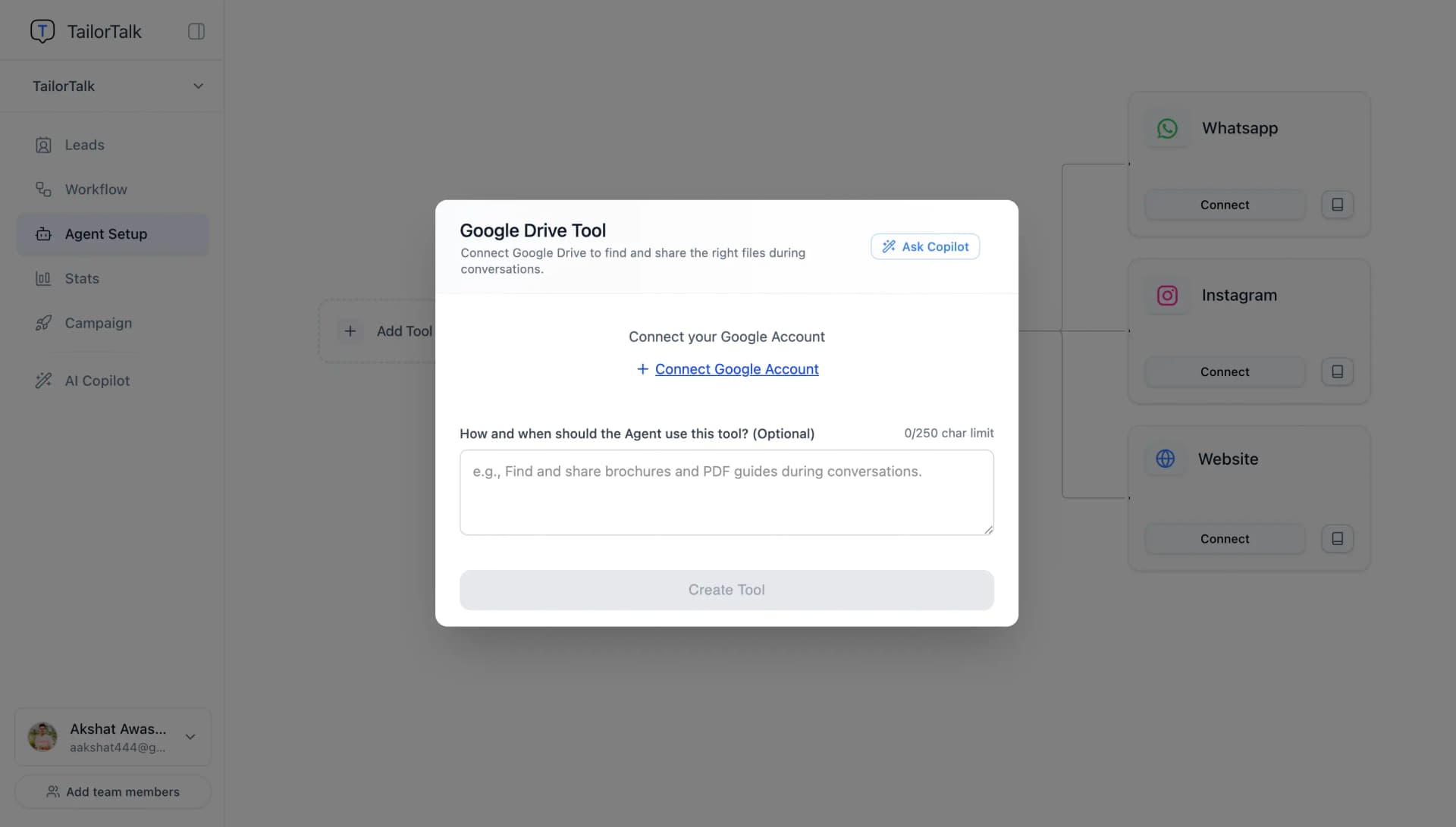
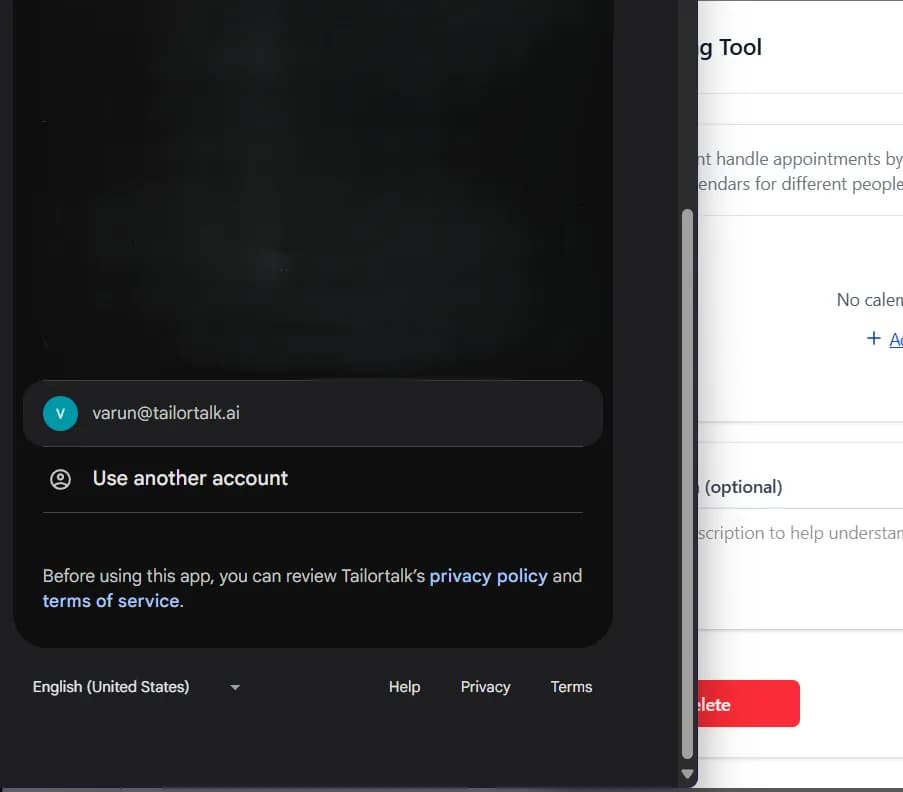
- Select Google Account: Choose the Google account that contains the folder you want to connect.
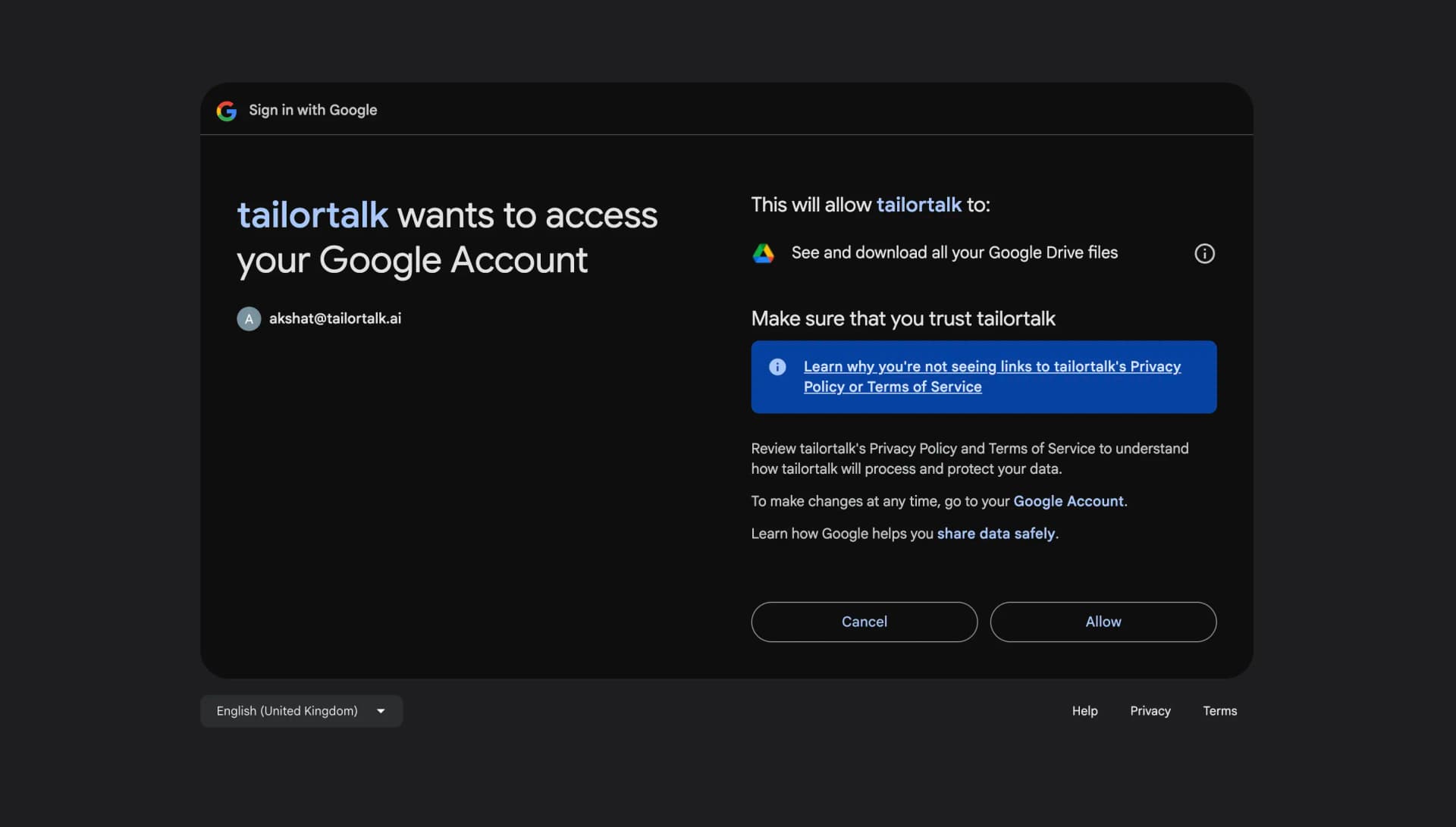
- Authenticate & Select Folder: Click Authenticate & Select Folder to open the Google Drive Picker.
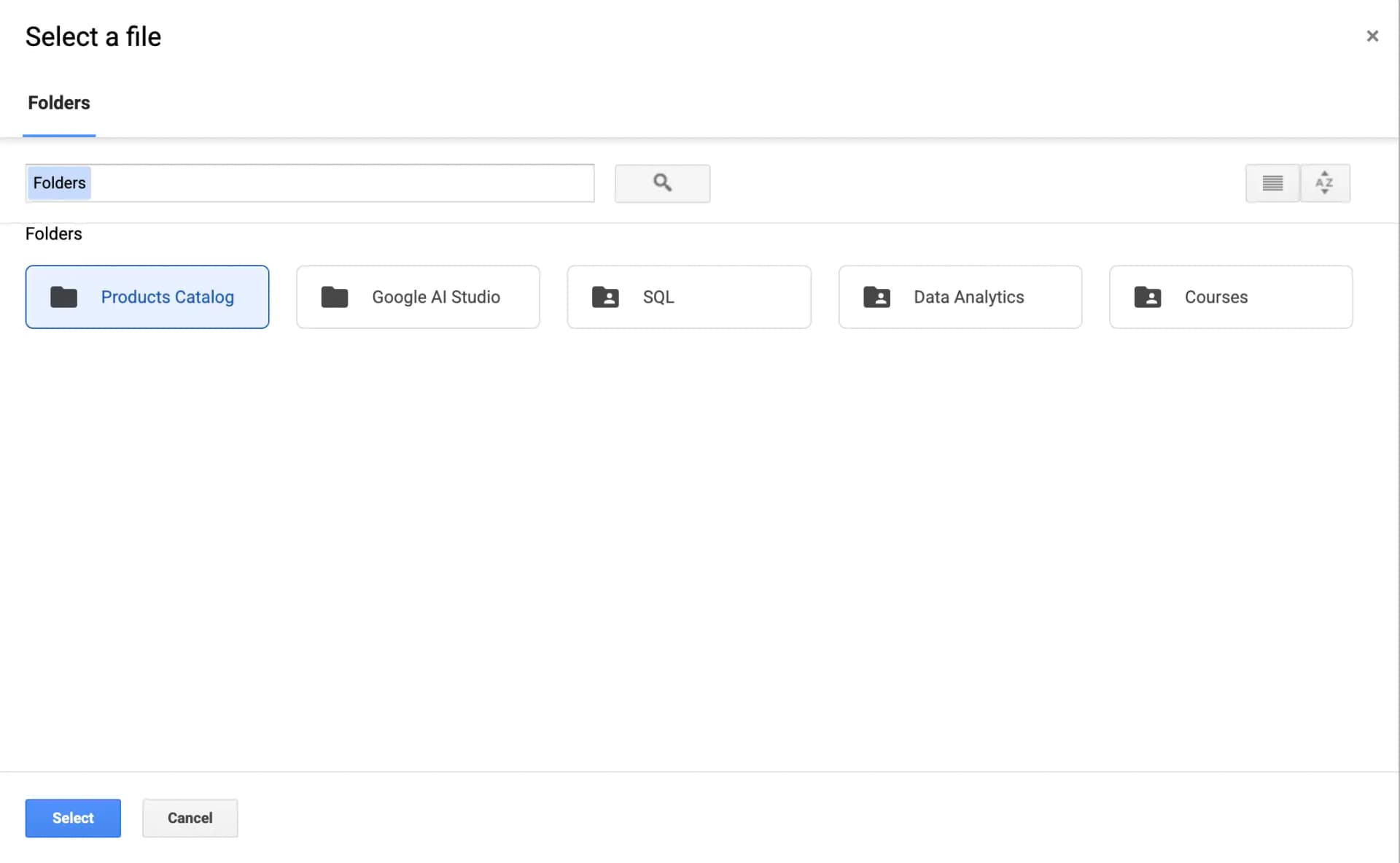
- Pick Your Folder: Choose the specific Google Drive folder containing the files you want to make available to the agent, and click Select.
- Finish Setup: Click Create Tool to finalize the integration. Your TailorTalk agent is now ready to access the files in the connected folder.
How Your TailorTalk Agent Interacts with Google Drive
Once configured and active:
- File & Folder Search: The agent searches the connected folder in real time to find matching files based on the conversation context or user requests.
- Direct File Sharing: The agent can retrieve links or files (documents, images, PDFs) and share them directly with users.
- Workflow Automation: Within workflows, the agent can fetch file metadata or download links to trigger subsequent automated delivery and document-sharing steps.
Common Use Cases
- On-Demand Catalog & Brochure Delivery: Allow users to ask for specific product catalogs, price lists, or brochures. The agent will retrieve the file link from Drive and share it instantly in the chat.
- Workflow Document Delivery: Incorporate file retrieval into multi-step workflows—for example, automatically finding and emailing a specific guide or PDF after a user completes a form or booking.
- Resource Sharing: Share marketing materials or guidelines directly with prospective clients during a conversation.
- Real-Time Drive Updates: Add, rename, or update files in your connected Google Drive folder, and the agent can immediately search and share the updated assets without any manual syncing.
By utilizing the Google Drive Tool, you can sync your business documents effortlessly and ensure your AI agent always has access to the most up-to-date information.

