Loading...
Sync Leads to Google Sheets
This guide shows how to send TailorTalk webhook data to Google Sheets without any third-party extension.
You will set up:
- A Google Apps Script Web App endpoint
- TailorTalk webhook URL with trigger
- Automatic upsert using
lead_contactas the primary key
Prerequisites
- A Google Sheet with a tab named
Sheet1(or update the script tab name) - Access to your TailorTalk Agent settings
- Webhook trigger enabled in TailorTalk (for example:
every_message)
Step 1: Create Your Google Sheet
- Open Google Sheets and create a new file.
- Keep the first tab name as
Sheet1(recommended for this script). - Leave row 1 empty. The script will auto-create headers.
Step 2: Open Apps Script
- In your sheet, go to
Extensions -> Apps Script. - Replace the default script with the code below.


function doPost(e) {
  const sh = SpreadsheetApp.getActiveSpreadsheet().getSheetByName('Sheet1');
  const payload = JSON.parse(e.postData.contents || '{}');

  // Use fields inside "data" key (fallback to full payload)
  const rawData = (payload && typeof payload.data === 'object' && payload.data !== null)
    ? payload.data
    : payload;

  // Flatten nested objects: lead_attributes.email_id -> lead_attributes_email_id
  const data = flattenObject(rawData);

  const keyField = 'lead_contact';
  const keyValue = String(data[keyField] || '').trim();

  // Existing headers
  let headers = sh.getLastColumn() > 0
    ? sh.getRange(1, 1, 1, sh.getLastColumn()).getValues()[0].filter(Boolean)
    : [];

  // Ensure standard columns
  ['updated_at', keyField].forEach((h) => {
    if (!headers.includes(h)) headers.push(h);
  });

  // Add new incoming fields as new columns
  Object.keys(data).forEach((k) => {
    if (!headers.includes(k)) headers.push(k);
  });

  // Write headers
  sh.getRange(1, 1, 1, headers.length).setValues([headers]);

  const colMap = Object.fromEntries(headers.map((h, i) => [h, i]));
  const keyCol = colMap[keyField] + 1;
  const lastRow = sh.getLastRow();

  let targetRow = -1;
  if (keyValue && lastRow > 1) {
    const existingKeys = sh.getRange(2, keyCol, lastRow - 1, 1).getValues().flat();
    const idx = existingKeys.findIndex(v => String(v || '').trim() === keyValue);
    if (idx !== -1) targetRow = idx + 2;
  }

  if (targetRow !== -1) {
    // Update existing row
    const row = sh.getRange(targetRow, 1, 1, headers.length).getValues()[0];
    Object.entries(data).forEach(([k, v]) => {
      row[colMap[k]] = v ?? '';
    });
    row[colMap['updated_at']] = new Date();
    sh.getRange(targetRow, 1, 1, headers.length).setValues([row]);
  } else {
    // Insert new row
    const row = headers.map(() => '');
    Object.entries(data).forEach(([k, v]) => {
      row[colMap[k]] = v ?? '';
    });
    row[colMap['updated_at']] = new Date();
    sh.appendRow(row);
  }

  return ContentService
    .createTextOutput(JSON.stringify({ ok: true }))
    .setMimeType(ContentService.MimeType.JSON);
}

function flattenObject(obj, prefix = '', out = {}) {
  Object.entries(obj || {}).forEach(([k, v]) => {
    const key = prefix ? `${prefix}_${k}` : k;
    if (v && typeof v === 'object' && !Array.isArray(v)) {
      flattenObject(v, key, out);
    } else if (Array.isArray(v)) {
      out[key] = v.join(','); // keep arrays sheet-friendly
    } else {
      out[key] = v;
    }
  });
  return out;
}
Step 3: Deploy Apps Script as a Web App
- Click
Deploy -> New deployment. - Select type:
Web app. - Set:
Execute as:MeWho has access:Anyone
- Click
Deploy. - Copy the Web App URL ending with
/exec.


Use URL format like:
https://script.google.com/macros/s/AKfy.../exec
Avoid domain-scoped /a/macros/... URLs because they often return 401 Unauthorized.
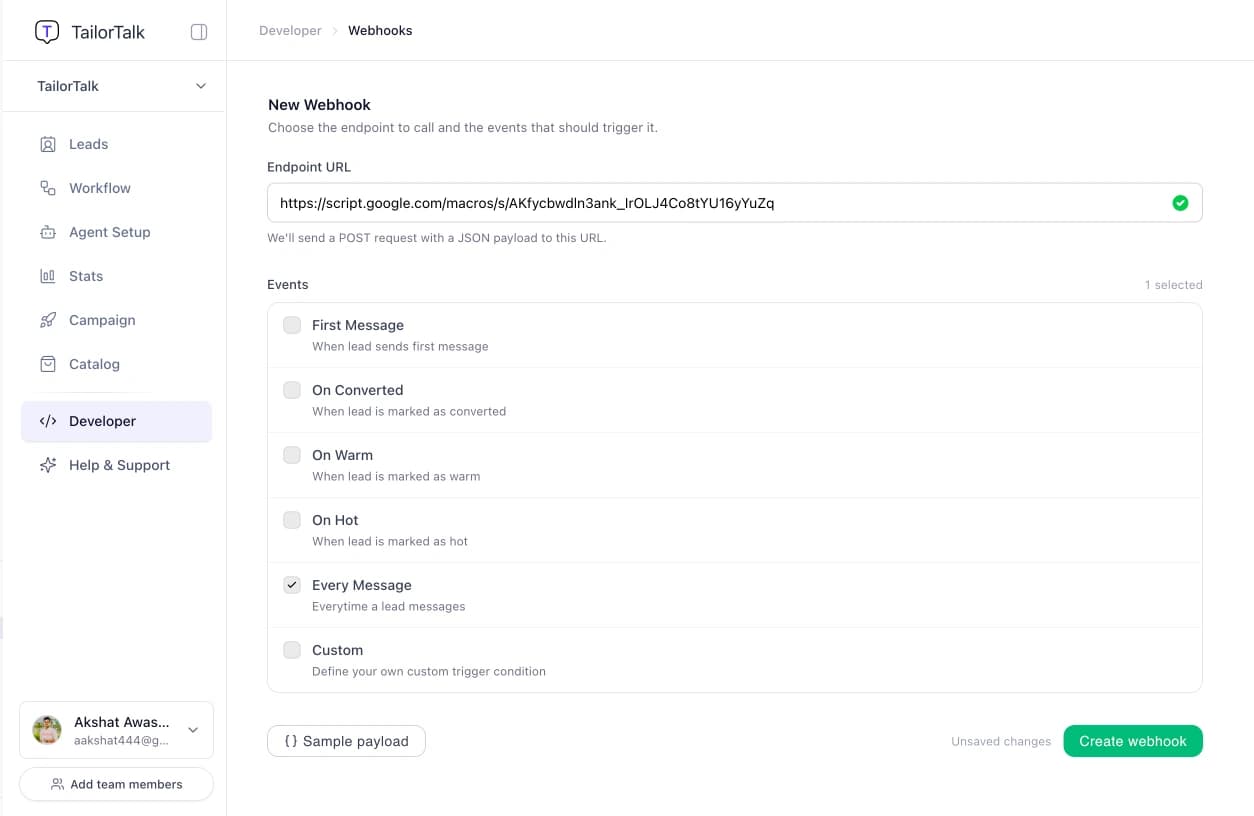
Step 4: Configure Webhook in TailorTalk
- Go to
Developerin the TailorTalk sidebar. - Open the
Webhookstab. - Click
Add webhook(or click the existing webhook card to edit it). - Paste the Apps Script Web App URL into
Endpoint URL. - Select required trigger(s), for example
every_message. - Click
Create webhook.

Step 5: Test End-to-End
- Trigger a message in TailorTalk (or send a Postman request).
- Confirm a new row appears in Google Sheet.
- Send another webhook with the same
lead_contact. - Confirm the existing row gets updated (not duplicated).
Expected Behavior
- New keys in webhook payload create new sheet columns automatically.
- Nested fields inside
dataare flattened with_separator. - Duplicate events for same
lead_contactupdate the same row. updated_atis refreshed on each update.
Troubleshooting
401 Unauthorized:- Redeploy Web App with
Who has access = Anyone - Use
/macros/s/.../execURL instead of/a/macros/...
- Redeploy Web App with
- Rows not updating:
- Confirm
lead_contactexists in webhookdata - Confirm sheet tab name matches the script (
Sheet1)
- Confirm
- Data appears as one JSON blob:
- Ensure you are using this script (not a
JSON.stringify(data)append-only version)
- Ensure you are using this script (not a

