Loading...
Template Messages
WhatsApp template messages are pre-approved by Meta message formats you can send to leads (especially for outbound broadcasts). TailorTalk helps you create templates faster (AI or manual), preview them, submit them for review, and track quality/messaging limits.
What is a Template Message?
A template message is a structured WhatsApp message that:
- Must be reviewed and approved by Meta before use.
- Uses an approved format (Header/Body/Buttons), or a Carousel of swipeable cards.
- Supports variables like
{{name}}for dynamic personalization.
Template Categories: Utility vs Marketing
- Utility: Transactional updates (e.g., order confirmations, delivery alerts, OTPs).
- Marketing: Promotional offers, newsletters, and re-engagement messages.
Delivery and Engagement
- Utility templates usually have higher open rates as users expect them. These templates have a ~100% approval rate as they are transactional.
- Marketing templates are more sensitive. Sending irrelevant marketing content can lead to user blocks, which affects your Quality Rating. Due to stricter policies, these have an about ~60% approval rate.
Creating a Template

Option A: Generate Using AI (Fastest)
- Click Create Template → Generate using AI.
- Provide a prompt: eg.: "Create a marketing template for a 20% off winter sale with a button to shop now."
- Click Generate Template button.

Option B: Manual Creation
- Click Create Manual.
- Define your Template Name, Category, and Language.
- Pick a Template Type: Standard (Header, Body, Footer, Buttons) or Carousel (a body followed by swipeable cards — see Carousel Templates below).
- Click Continue button.

Review
Before submitting your template to WhatsApp for approval, it’s recommended to review and refine it for clarity, compliance, and engagement.
In the Review & Improve step, you can:
Preview the full message exactly as users will see it (Header, Body, Buttons — or the body and its cards for a carousel).
Check variable placement and has enough static text.
Validate button actions (Quick Replies).
Quick Reply Buttons
- Allows users to tap a predefined button (e.g., "Interested", "Talk to Agent").
- What happens on click?: When a user clicks a Quick Reply, WhatsApp sends that specific text back to your TailorTalk account. This can trigger an automated AI response or notify a human agent to take over the conversation immediately.

Using Variables and CSV Mapping
To personalize messages, use double curly braces or add using add Variable button.
e.g: Hi {{name}}, your order is ready!.

Rules for Variables:
- No spaces inside braces:
{{first_name}}✅ |{{first name}}❌ - Each variable in your template must have a corresponding column header in your CSV/XLSX file during broadcast.
Carousel Templates
A carousel template sends one message body followed by up to 10 cards the customer can swipe through. Each card carries its own image or video, its own text, and its own buttons — useful for showing a product range, a set of offers, or several booking options in a single message.
You can reach the carousel editor two ways:
- Manual: choose Carousel as the Template Type in the Template Basics step.
- Generate using AI: ask for a carousel in your prompt, or simply describe multiple products or options — the generated template comes back as a carousel and opens directly in the carousel editor, with its cards ready to edit.
eg.: "Create a carousel template showcasing our top 3 sarees, each with an image, price, and a Buy Now button."
Structure
A carousel drops the message-level Header, Footer, and Buttons. Only the Body stays, and it appears above the cards.
| Part | Where it lives | Notes |
|---|---|---|
| Body | Message level | Shown once, above the carousel. Supports variables. |
| Media | Each card | Image or video. Required. |
| Card Body | Each card | Optional, up to 160 characters. |
| Buttons | Each card | 1–2 per card. |
Building Cards
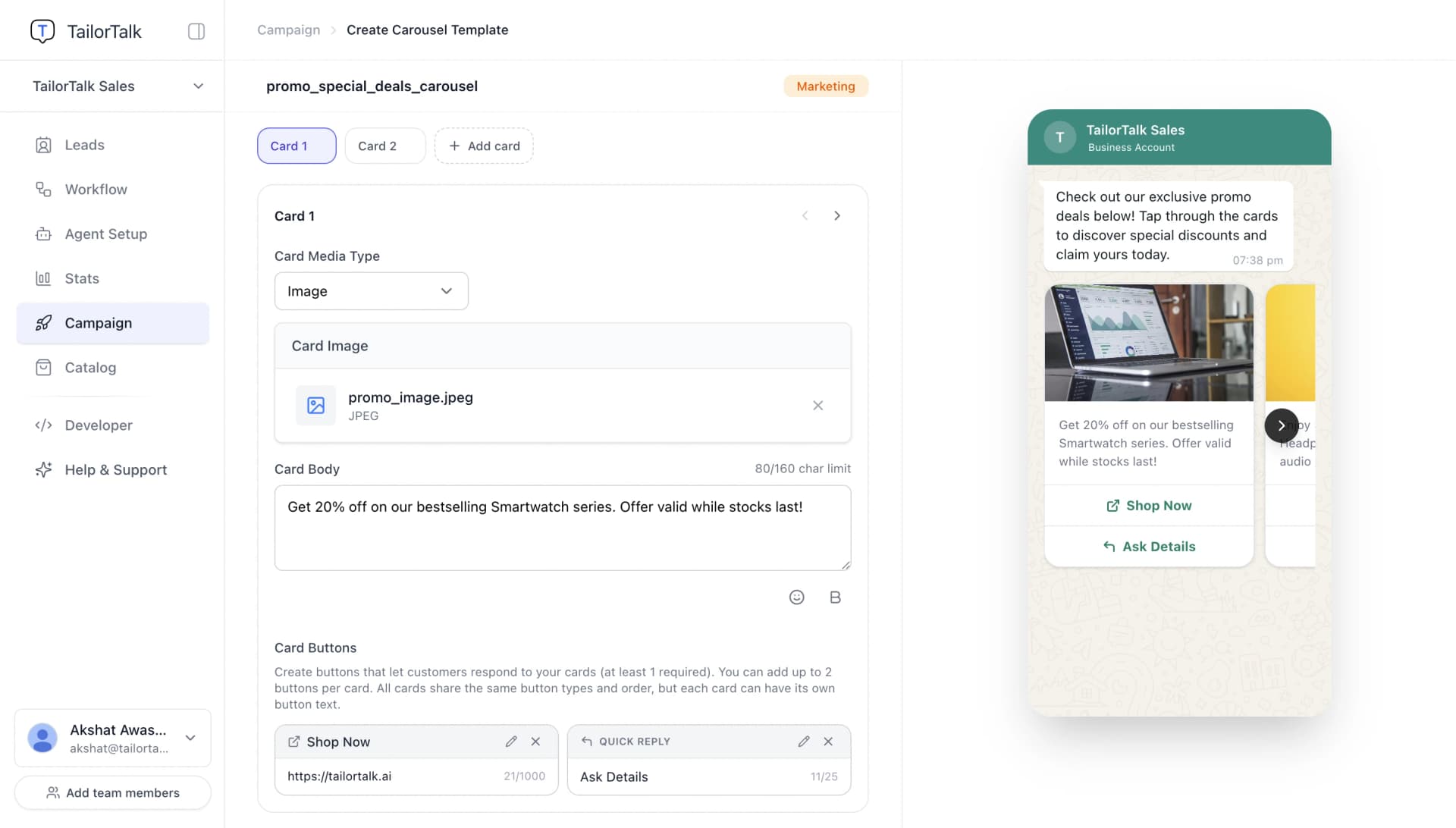
- Write the Message Body — this is what the customer reads before the cards.
- Add cards using Add card. A carousel needs at least 2 cards and allows up to 10.
- For each card, pick the Card Media Type (Image or Video) and upload the file.
- Add Card Body if you want a caption under the media.
- Add Card Buttons — Quick Reply, Visit Website, or Call Phone Number.
- Drag the Card 1, Card 2 … chips to change the order the cards are sent in.
The preview on the right updates as you type, so you can see the carousel exactly as the customer will swipe through it.
Rules for Cards:
- Each card must have media. Images accept
jpg/jpeg/pngup to 5 MB, videos acceptmp4up to 16 MB. - Cards can mix formats —
example:card 1 can be an image and card 2 a video. - Card Body is capped at 160 characters and does not support variables. Use the message body for personalization.
- Either every card has a body, or none of them do.
- Each card needs at least 1 button and can have at most 2.
- All cards must use the same button types in the same order, but the button text can differ per card.
The last rule is the one Meta is strictest about. If card 1 has Quick Reply → Visit Website, every other card must follow the same order — though card 1 can say "Buy Now" while card 2 says "Order Today". TailorTalk keeps the cards in step as you edit and flags anything that would be rejected before you submit.
Approval Process
- Submit: Once you finish the review, click Create Template.
- Review: WhatsApp typically reviews templates within minutes.
- Important: Meta reserves the right to automatically change your template’s category (e.g., from Utility to Marketing) during the review process based on its content. If this occurs, your messaging charges will be updated according to the final category assigned by Meta.
- Approved: Once the status turns green (Approved), the template is ready for use in Broadcasts and the API.

