Loading...
Campaigns: Re-engagement
Re-engagement brings back leads and past customers who have stopped replying. TailorTalk ranks these contacts by how likely they are to come back, so you don't need a contact list. You choose the message and how many contacts get it, and TailorTalk messages the best-ranked contacts first.
Before You Start
- Your agent is active and has a WhatsApp number connected. See WhatsApp Integration.
- A payment method is added in your Meta account, since WhatsApp charges for template messages. See Charges and Billing.
Step 1: Choose Your Template
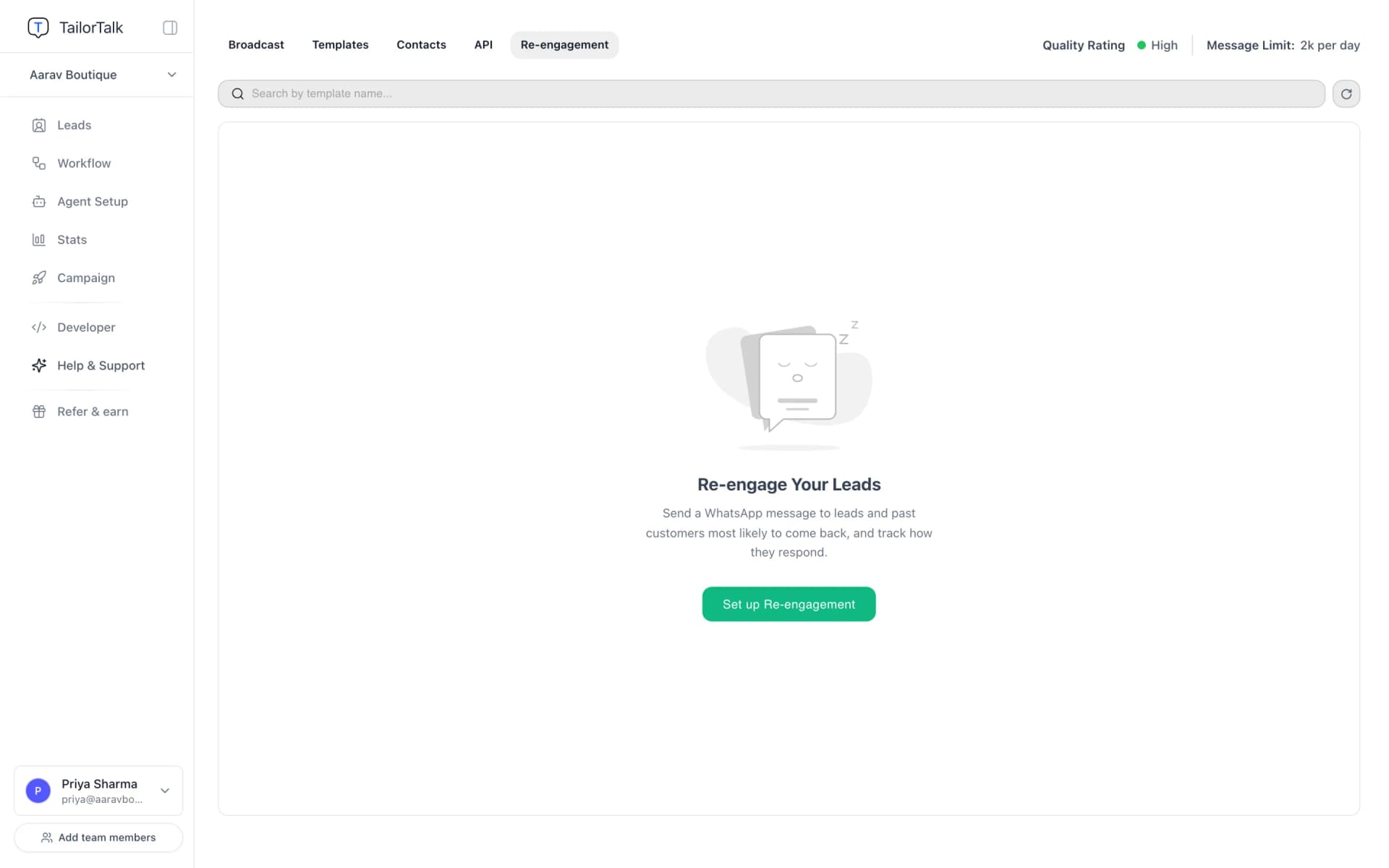
Go to Campaign → Re-engagement and click Set up Re-engagement.
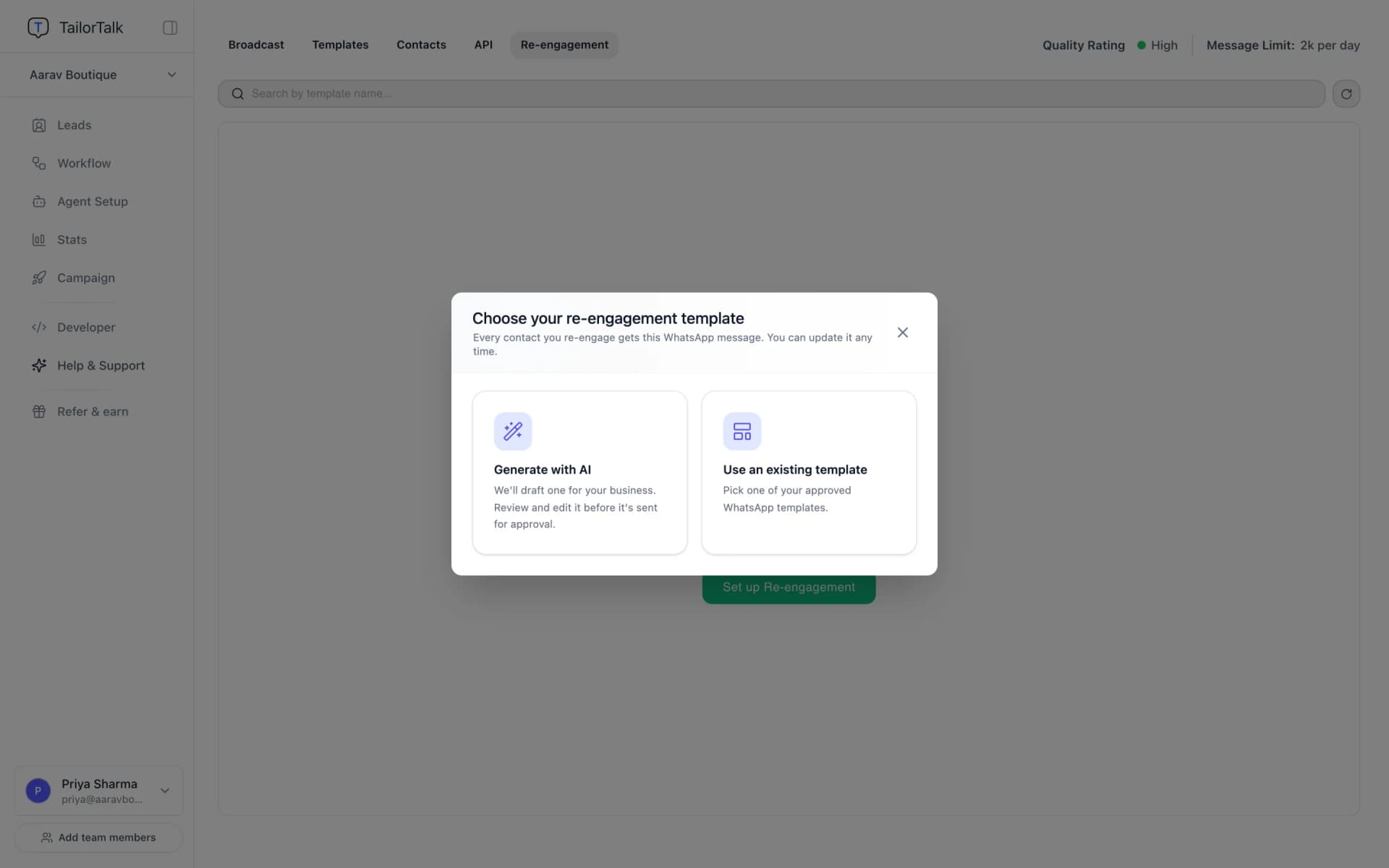
Choose how to create the message your contacts will receive:
- Generate with AI: TailorTalk writes a message for your business and opens it in the editor. Review it, then click Create template and continue.
- Use an existing template: pick one of your approved templates and click Use this template.
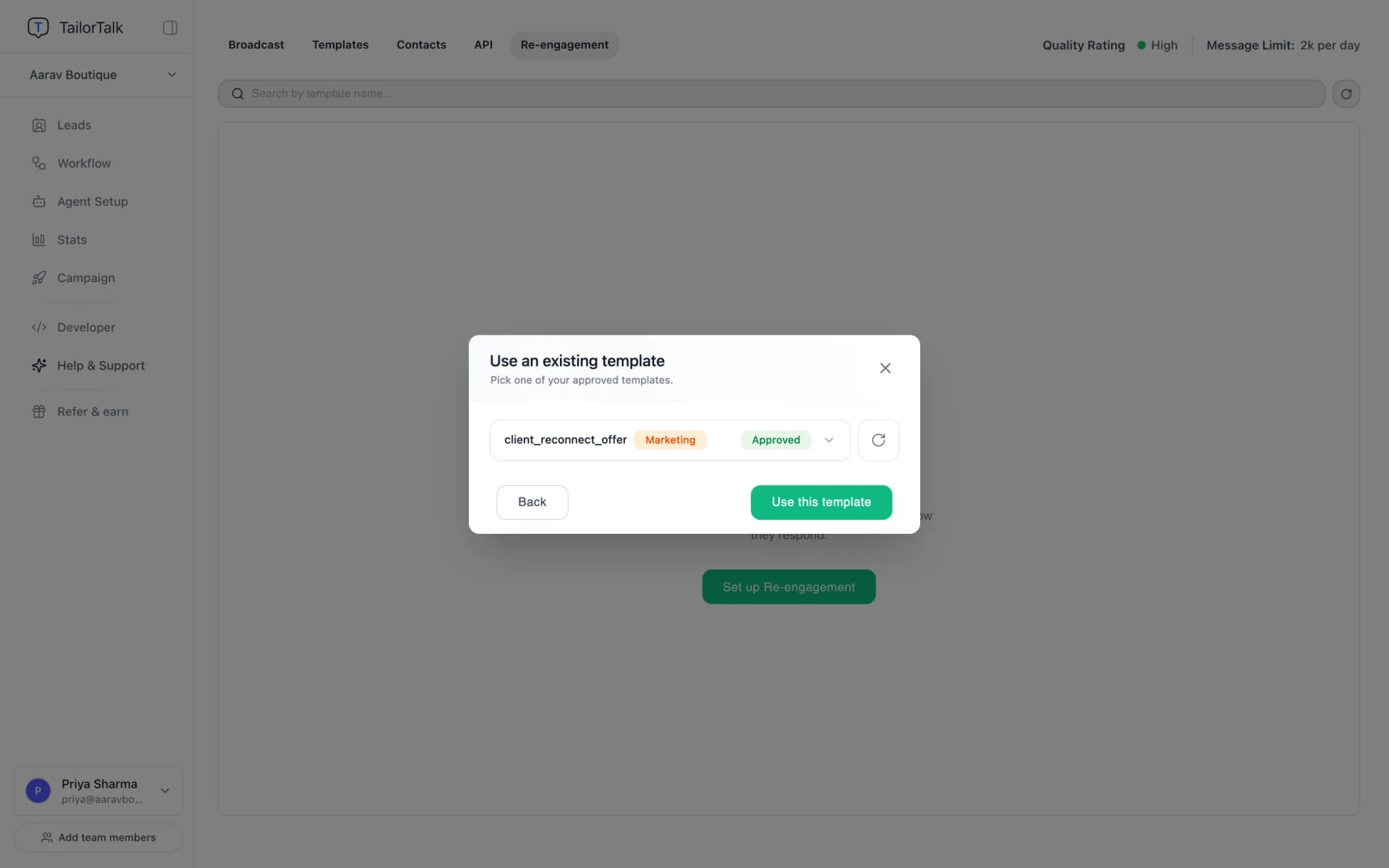
Your choice is saved, so next time you go straight to sending.
Step 2: Wait for Approval
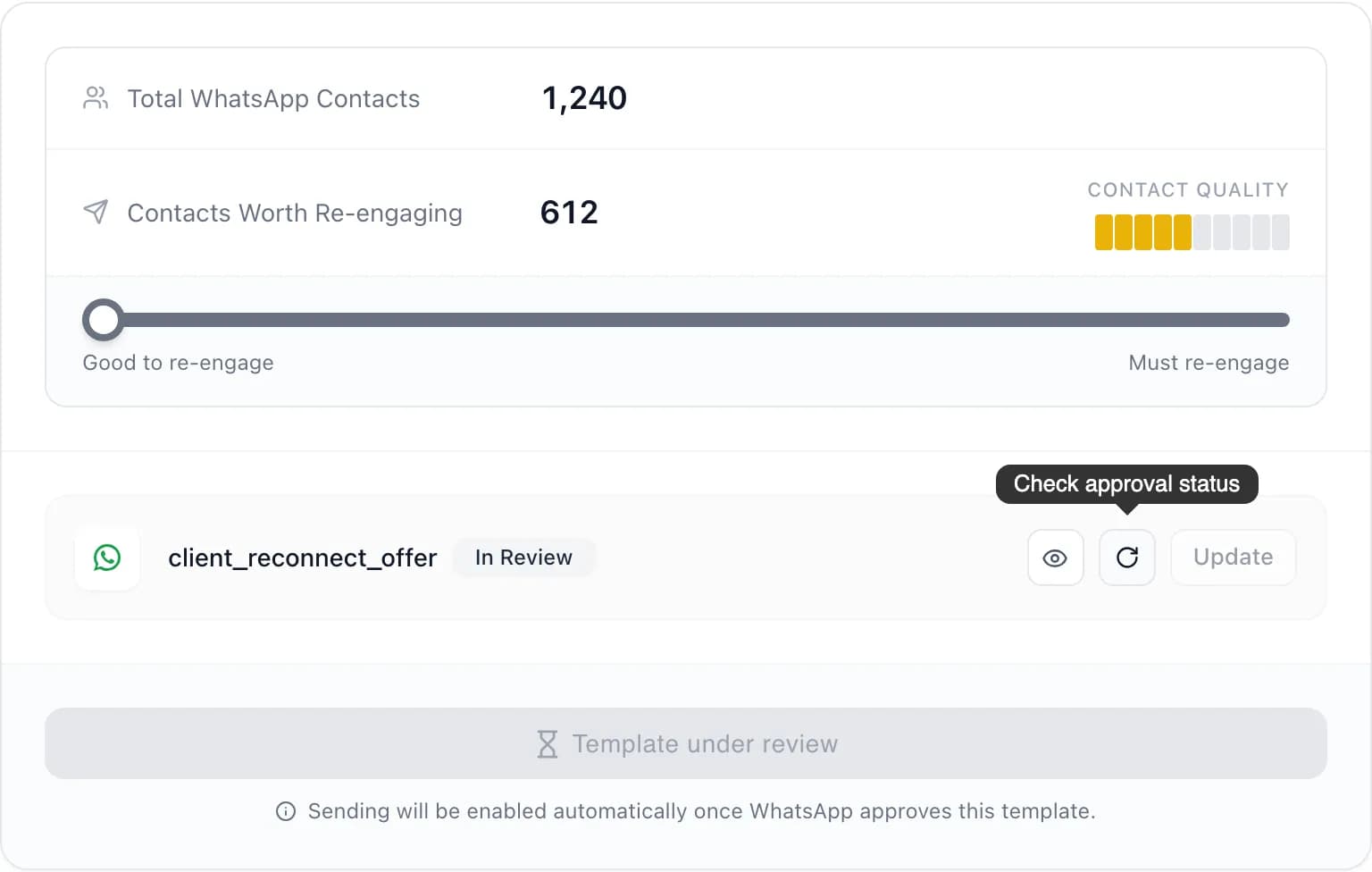
A new template must be approved by WhatsApp before it can be sent, which usually takes a few minutes. While it's In Review, sending is paused. The page checks the status for you and enables sending as soon as the template is approved. To check right away, click the refresh icon.
Step 3: Choose How Many Contacts
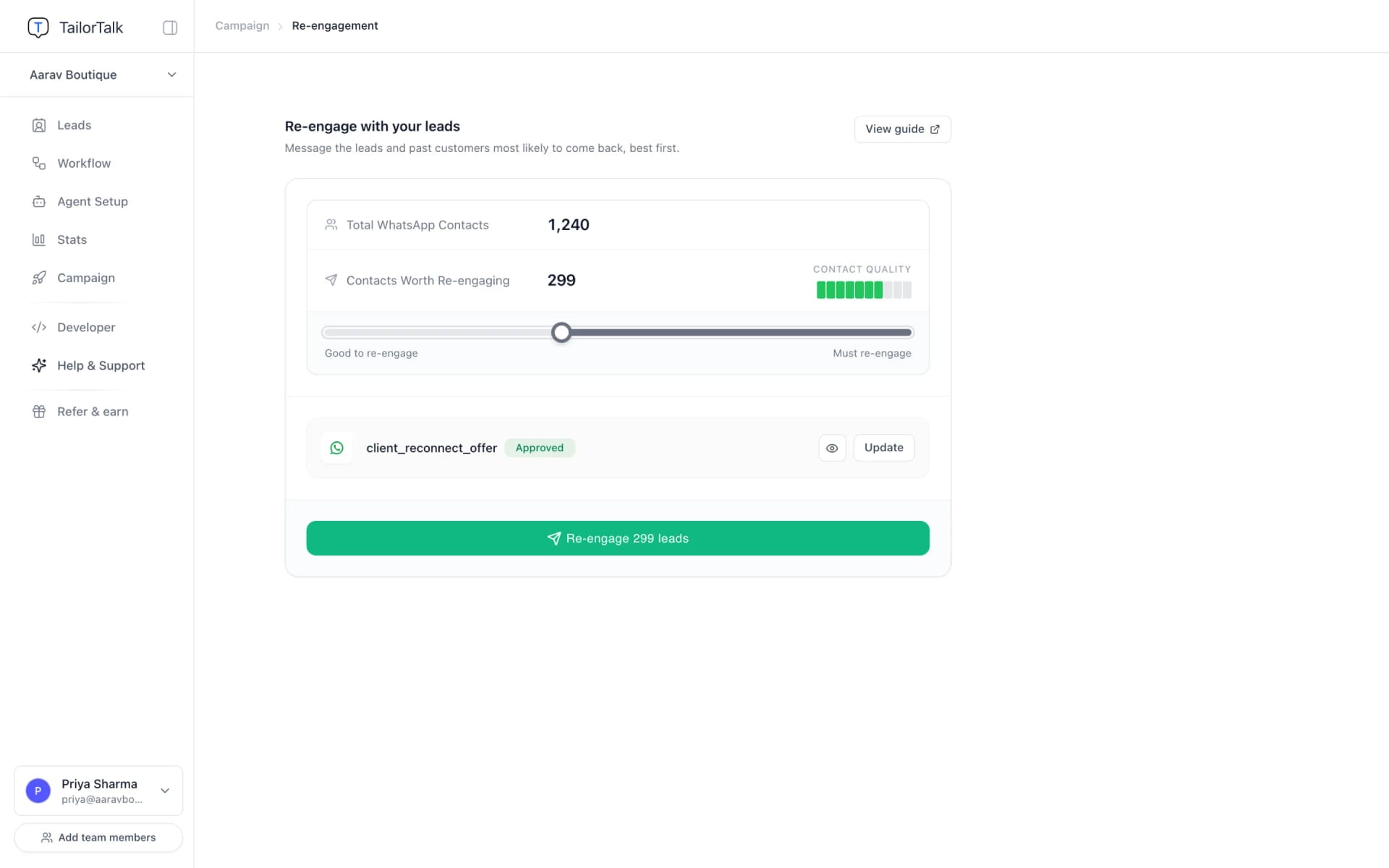
- Total WhatsApp Contacts: all the contacts TailorTalk has ranked.
- Contacts Worth Re-engaging: how many contacts this send will reach.
Use the slider to decide how many to message. Every contact on the slider is worth re-engaging:
- Good to re-engage (left): message everyone worth re-engaging.
- Must re-engage (right): message only the contacts most likely to come back.
The Contact Quality bars next to the count follow the slider: 5 of the 10 bars are filled at the left end and all 10 at the right, and the colour turns from amber to deep green as your selection gets stronger.
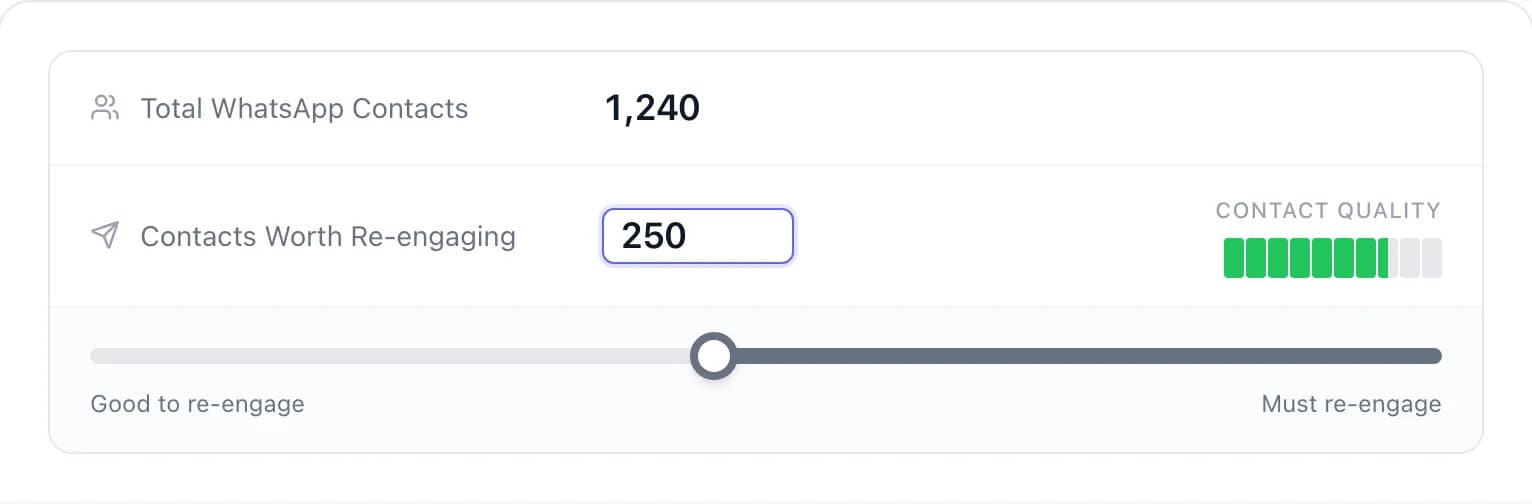
To send to an exact number, hover over the count, click the pencil icon and type it in.
Step 4: Preview Your Message
Click the eye icon on the right of the message to see it as your contacts will see it.
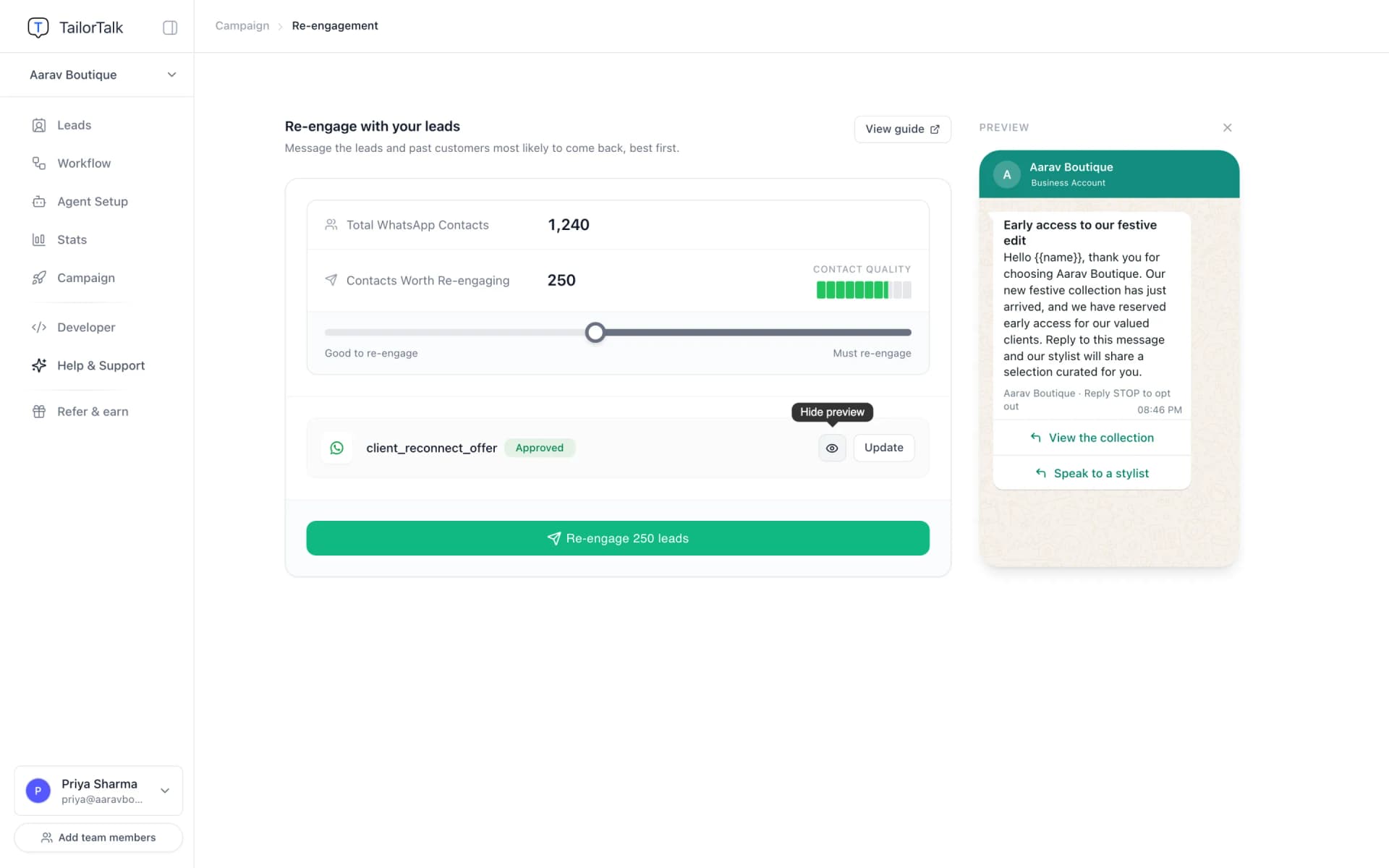
To change the message, click Update. An updated template goes back to WhatsApp for approval. See Editing a Template.
Step 5: Launch
Click Re-engage [number] leads. Messages start sending right away, so check the count before you click.
If the button is greyed out, its text tells you what to do next, such as waiting for approval.
Good to know:
- Only one re-engagement can run at a time.
- Contacts you re-engage aren't messaged again unless they reply and later stop replying again.
- Blocked contacts and spam are never included.
Step 6: Track Results
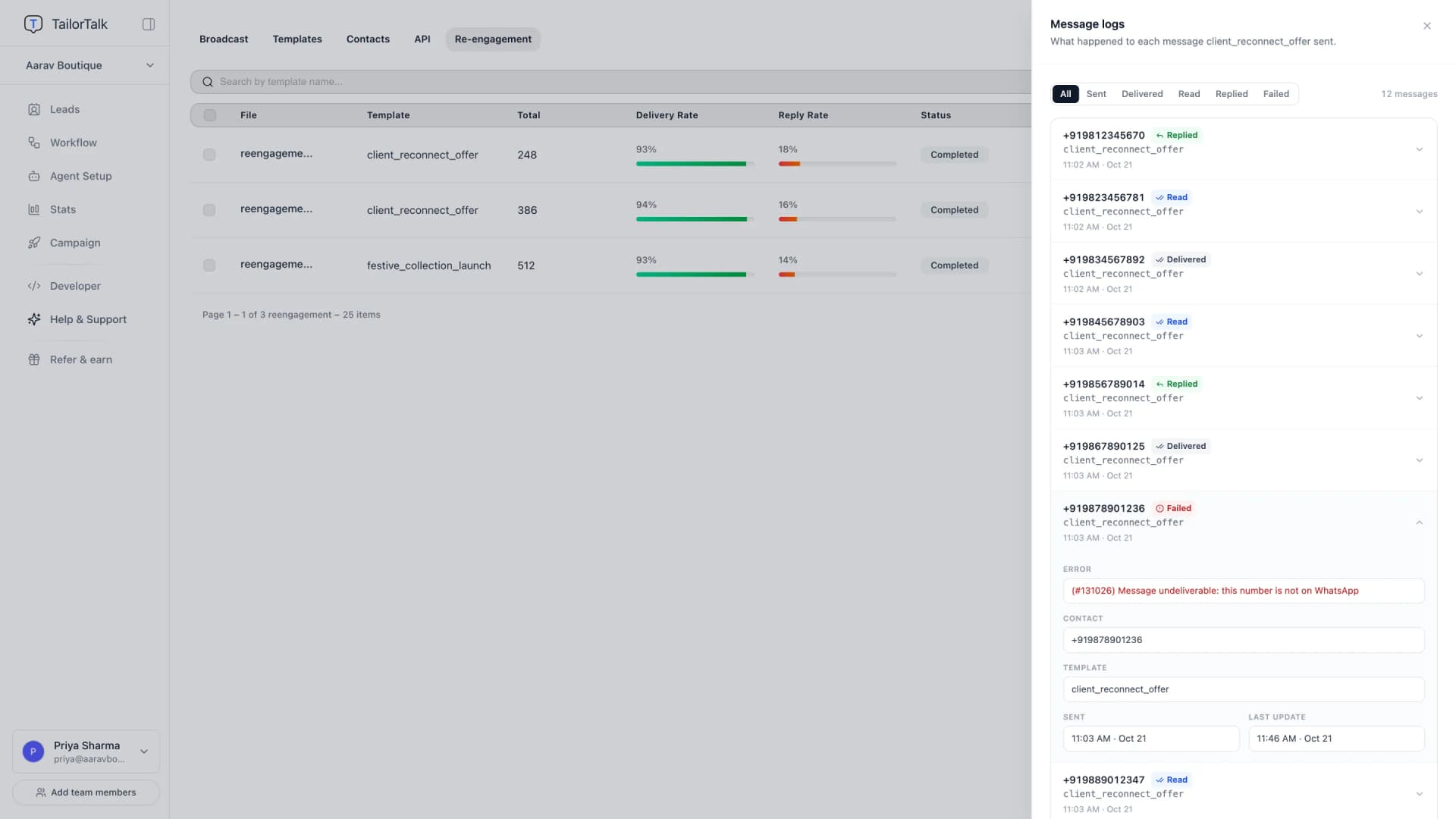
Each send appears on the Re-engagement tab with its delivery rate, reply rate and status. To send again, click Launch Re-engagement.
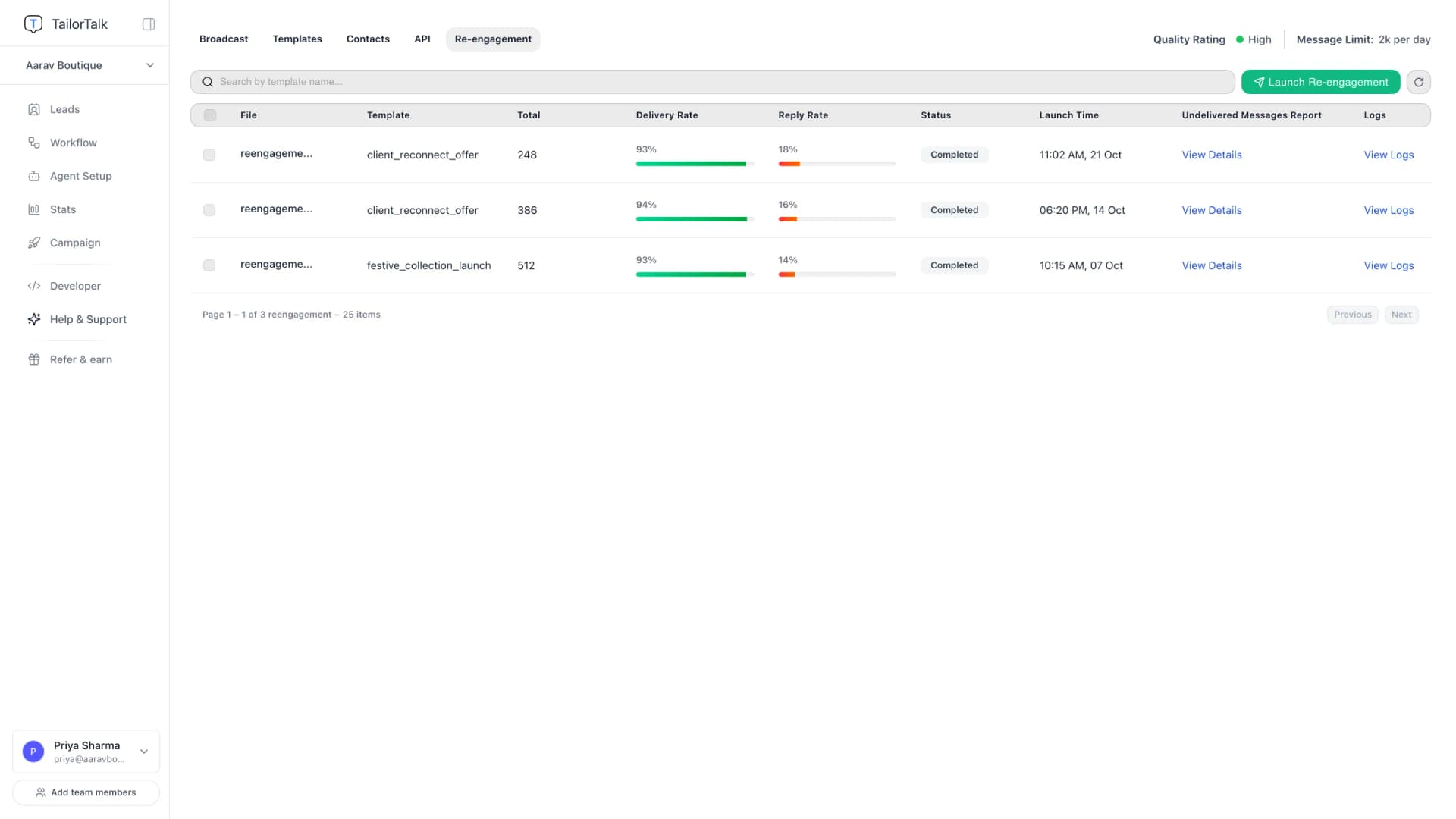
Click View Logs to see what happened to each message: sent, delivered, read, replied or failed. Click a failed message to see why it failed.
When a contact replies, your AI agent continues the conversation and you can follow it on the Leads page.

